
Coordinate Converter
Scan coordinate files or photo folders, detect and convert any GPS format automatically, and export your data in the formats you need.
User Guide:
This guide walks you through using the WiseApps Coordinate Converter to detect and convert all types of GPS coordinates in various file formats and image folders. Everything runs offline on your computer with no internet required.
Coordinate File Conversion – Step-by-Step Instructions
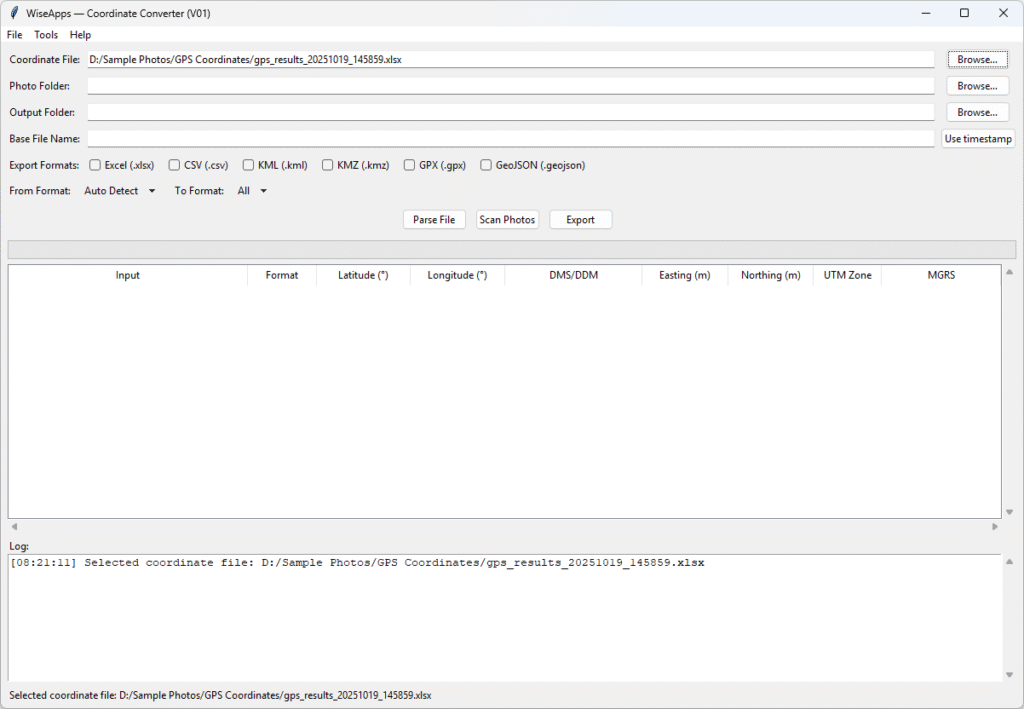
1. Choose your coordinate file
Click “Browse…” beside Coordinate File
Select your Excel (.xlsx) or CSV (.csv) file containing GPS coordinates.
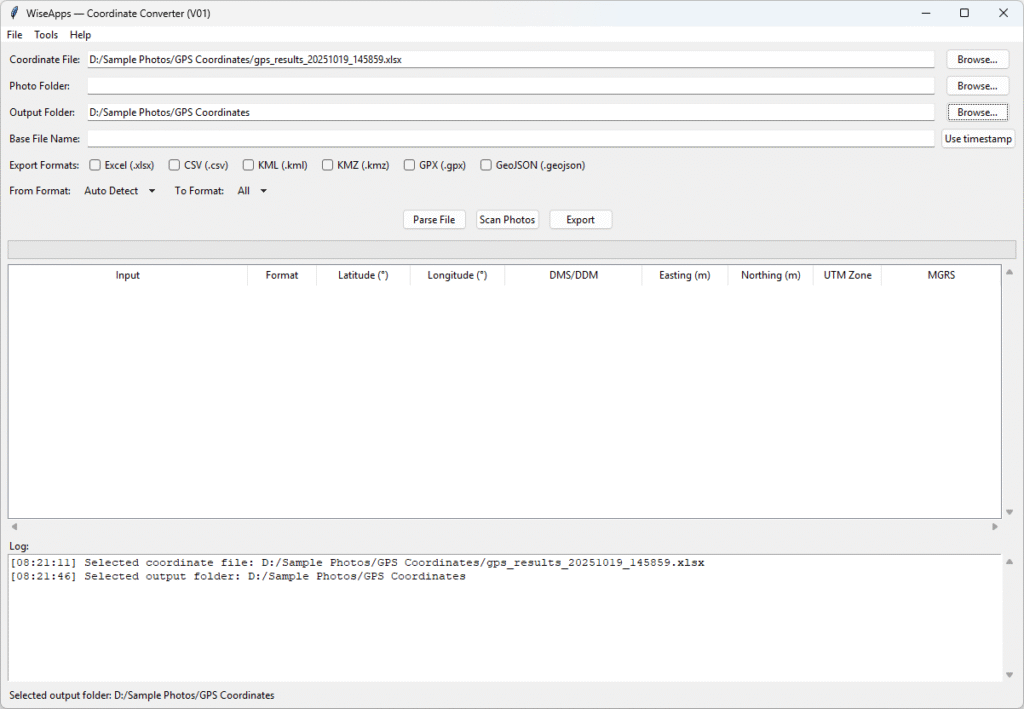
2. Select an output folder
Click “Browse…” beside Output Folder
This is where all converted files will be saved.
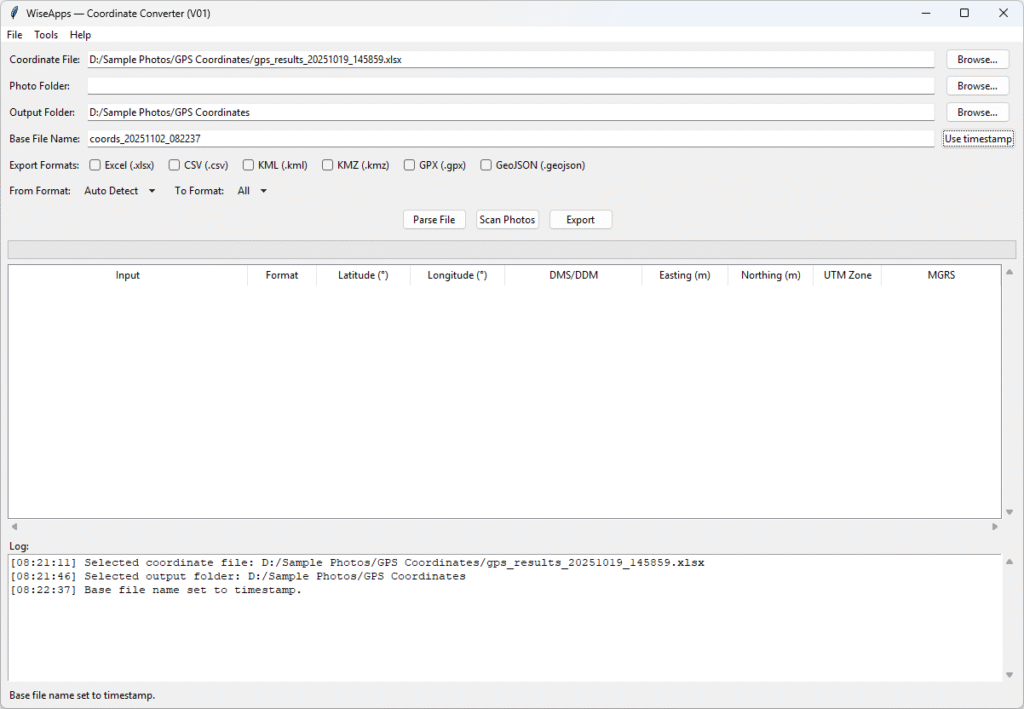
3. Set the output file name
Type your preferred Base File Name, or click “Use timestamp” to generate one automatically.
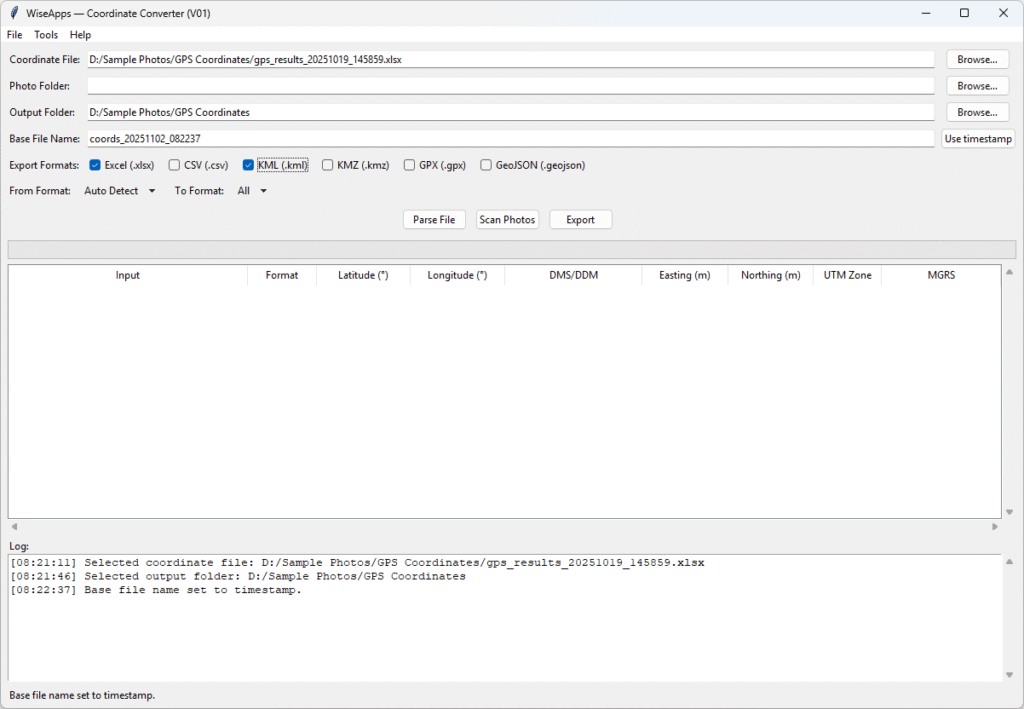
4. Select export format(s)
Choose one or more output types: Excel, CSV, KML, KMZ, GPX, or GeoJSON. You can choose multiple formats simultaneously.
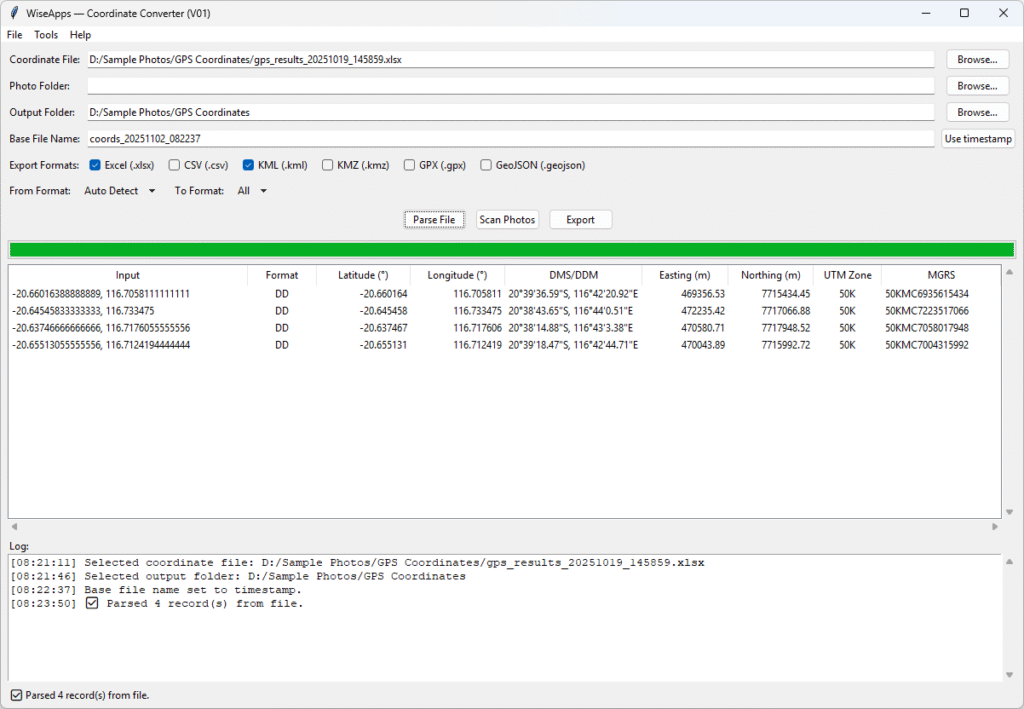
5. Parse the file
Click Parse File
The tool will auto-detect formats like DD, DMS, DDM, UTM, MGRS, and extract all valid coordinate pairs.
6. Export the results
Click Export to generate output files in the selected formats.
Successfully converted entries appear in the table with full location breakdown.
7. Locate your exported files.
Navigate to the output folder you chose earlier; you’ll see the generated files.
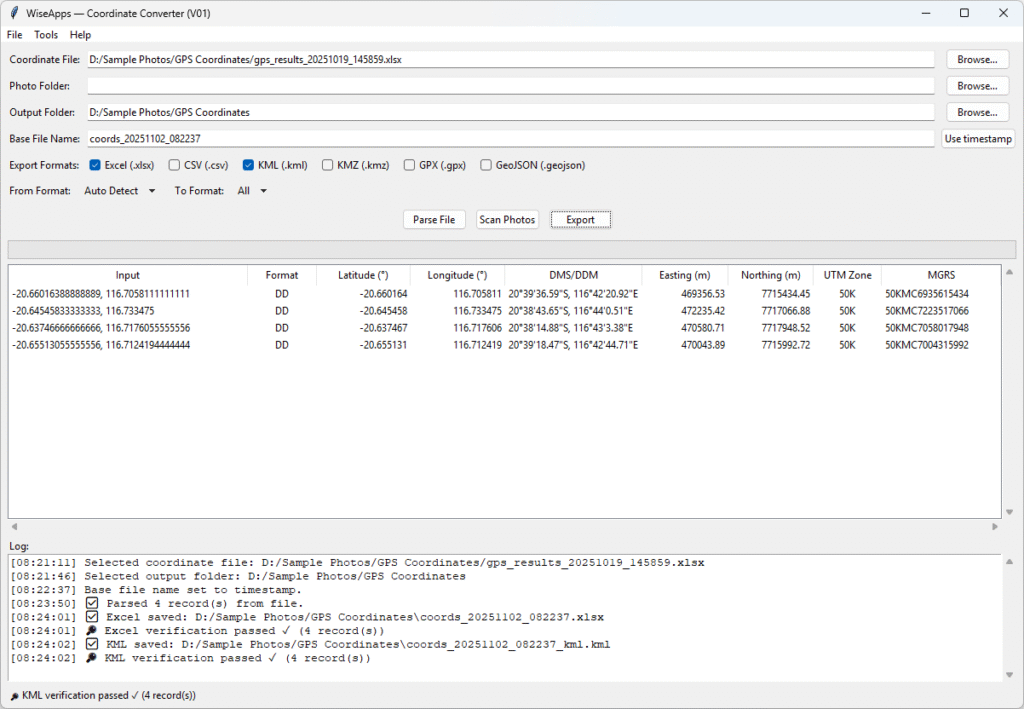
Photo GPS Data Conversion – Step-by-Step Instructions
1. Select Your Photos Folder
Open the application and click the Browse… button next to Photo Folder.
Choose the folder containing the images you want to convert. Supported photo formats include:
- JPEG (.jpg, .jpeg)
- PNG
- TIFF (.tif, .tiff)
- HEIC
- WebP
2. Choose an Output Folder
Next, click Browse… beside Output Folder to select the destination where converted results will be saved.
3. Set a Base File Name
Enter a custom file name under Base File Name, or click Use timestamp to auto-generate one using the current date and time.
4. Select Output Format(s)
Tick one or more export formats:
- Excel (.xlsx)
- CSV (.csv)
- KML / KMZ (for Google Earth)
- GPX (for GPS devices)
- GeoJSON (for GIS tools)
Multiple formats can be selected simultaneously — the tool will generate one file for each format.
5. Choose Desired Coordinate Format(s)
Under From Format, select Auto Detect (default) — since the tool reads standard EXIF GPS metadata.
Then select To Format, which defines what kind of coordinate output you want:
- Decimal Degrees (DD)
- Degrees, Minutes, Seconds (DMS)
- Degrees and Decimal Minutes (DDM)
- UTM
- MGRS
- All (recommended)
6. Click “Scan Photos”
Hit the Scan Photos button to begin scanning all images in the folder.
The app will:
- Extract embedded GPS coordinates
- Convert to selected formats
- Display the results in a sortable table
7. Review & Export
Once processed:
- Review results directly in the table
- Double-click a row to view the location in Google Maps
- Click Export to save all data to the formats you selected earlier
- Navigate to the output folder you chose earlier; you’ll see the generated files.
Version & Release Notes:
| Category | Details |
| Product | Coordinate Converter |
| Brand | WiseApps |
| Version | V01 |
| Build Date | 2025-10-08 |
| Release Type | Initial stable release |
System Requirements:
| Category | Details |
| Supported Platforms | Windows 10 / Windows 11 (64-bit only) |
| Input Types | Excel spreadsheets (.xlsx), CSV (.csv), Image files with GPS metadata |
| Supported Image Formats | JPEG (.jpg/.jpeg), TIFF (.tif/.tiff), HEIC, PNG, WebP (if GPS metadata exists) |
| Coordinate Formats | Automatically detects and converts DD, DMS, UTM, MGRS, and more |
| Export Formats | Excel (.xlsx), CSV (.csv), KML, KMZ, GPX, GeoJSON |
| Installation | No installation required |
| Runtime Environment | Standalone executable with bundled dependencies |
| Internet Connection | Not needed |
We love turning friction into flow. Whether it’s scripting away the repetitive bits or building tools that quietly handle the background tasks, we’re here to help you move faster with less effort.
At WiseApps, we don’t chase trends — we craft purposeful utilities that solve real problems. If something can be automated, streamlined, or simplified, we’ll find a way — and make it feel effortless.